Student Article
Completing eLearning Modules
Launch each assigned course, click Start Course, and make sure your completion date, score, and expiration flow back to the Requirements table.
Open modules from Requirements
- In the Requirements list, click the module name (first column). eLearning items always open in a new browser tab.
- Keep the original tab open so the completion data can sync back to CPNW when you finish.
- If the module does not launch, disable pop-up blockers for the site and try again.
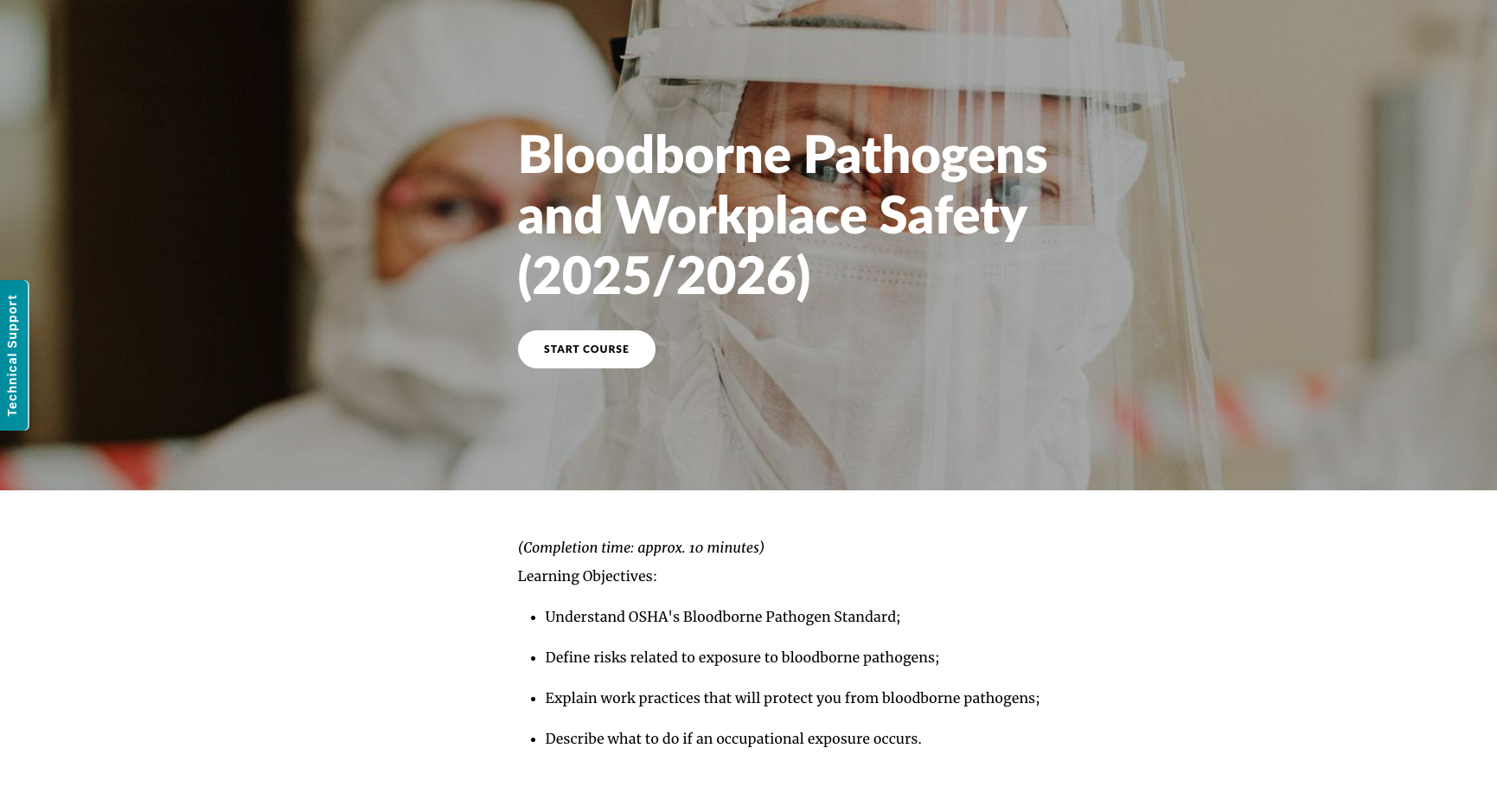
Click “Start Course” to begin
Each module opens to an overview screen. Press the Start Course button to actually begin. Skipping this step keeps the course in a “not started” state even if the tab is open.
- Use headphones if the course includes narration.
- Advance through all slides and interactive checkpoints.
Finish, score, and verify
- Complete all sections, then take the quiz. All eLearning modules require a score of 80 or higher.
- When you reach the completion screen, leave the tab open for a few seconds so the LMS can send the result back to CPNW automatically.
- Return to the Requirements tab and refresh. The module’s status, score, and expiration date should now show as completed.
- Use the Download PDF link in the eLearning Results menu if you need a copy for your records.
Troubleshooting tips
- If a score does not post, reopen the module tab, confirm it shows 100% complete, then refresh CPNW.
- Always launch modules from the Requirements page so completions tie to the correct item.
- For stubborn issues, clear your browser cache or try a different browser, then contact your coordinator or CPNW support.