Student Article
Completing Requirements
Keep your placement on track by reviewing every requirement, uploading proof, and finishing assigned eLearning modules directly inside your CPNW dashboard.
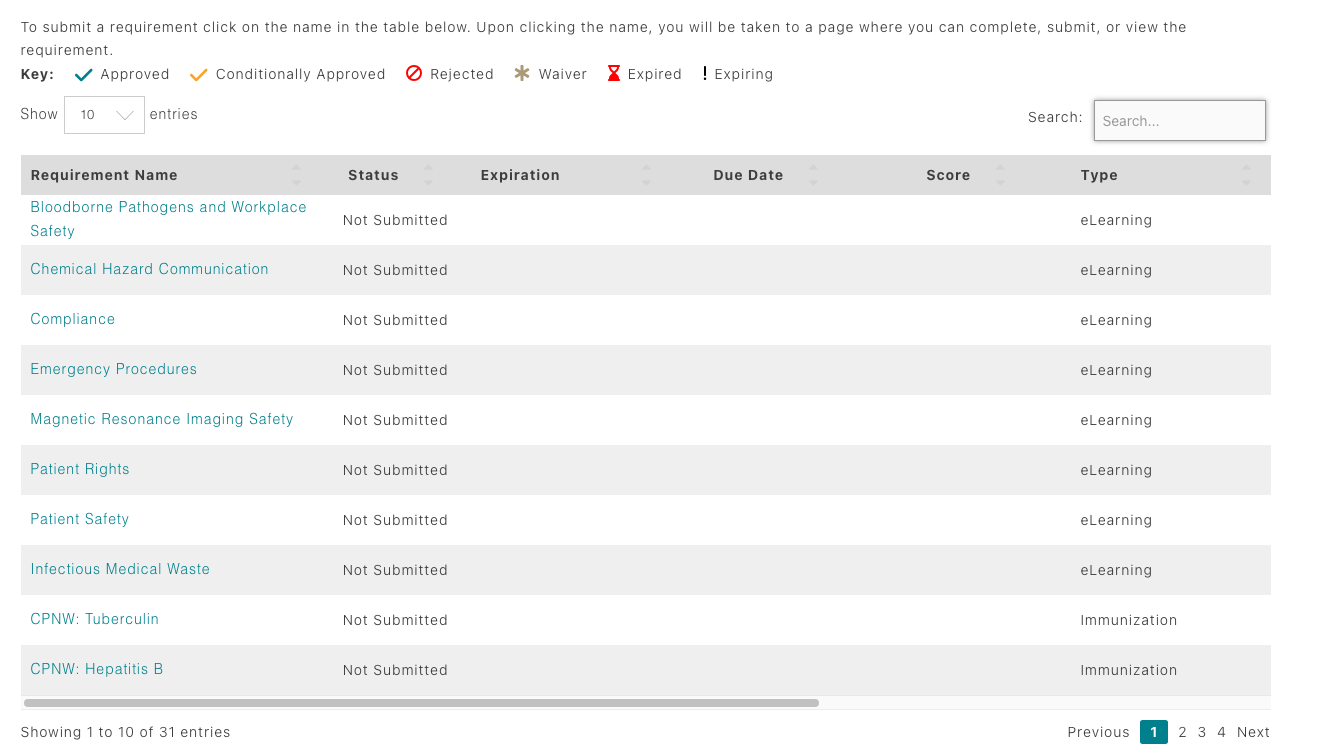
Tip: Use the column headers to sort by Requirement Name, Status, Expiration, Type, Frequency, or Category. Scroll horizontally to view every column and action.
Accessing the Requirements list
- From the dashboard, open the My Records panel on the left and click Requirements.
- Filter the list by All, Outstanding, or Completed to focus on what needs attention.
- Each entry displays the requirement name, current status, and expiration date (if the requirement is due annually). When scrolling left to right, it also shows the type of requirement, frequency, category, and reviewer.
Opening requirement details
- Click the requirement name (first column) to open details. eLearning modules launch in a new browser tab so you can complete the training.
- All other requirements open a modal with instructions, linked documents to download, submission or declination fields, an Upload Documentation link, and a Save button.
- Use the message board on the right side of the requirements view to communicate with your program coordinator, facility coordinator, or CPNW Reviewer.
Uploading documentation
- Use the Upload button within each requirement to attach immunization records or other required documentation.
- Supported formats include PDF, JPG, PNG, Excel (.xlsx), and Word (.docx).
- After submission, the item shows as Pending Review until a coordinator approves it. Watch for comments if additional information is needed.
Completing eLearning modules
eLearning modules appear in the Requirements list and open in a new browser tab when clicked.
- Launch each module, review all sections, and pass the quiz. You must score 80 or better to pass, and you can retake it as needed.
- Once finished, the module automatically records the completion. Status, score, and expiration date update on the requirements table; refresh the page if needed.
Pro Tip: Read the instructions for each requirement
carefully before submitting. Most rejections happen because directions
were missed or not followed. If a requirement asks for
dates/locations, or has any other fillable field, they must be
utilized when possible. For immunization requirements it is not enough
to just upload the documentation and click Save. You must also enter
the requested information into the required fields.