Educational Coordinator Guide
Approving Account Requests
Keep student and faculty access up to date by reviewing, approving, or declining account requests from the Users table.
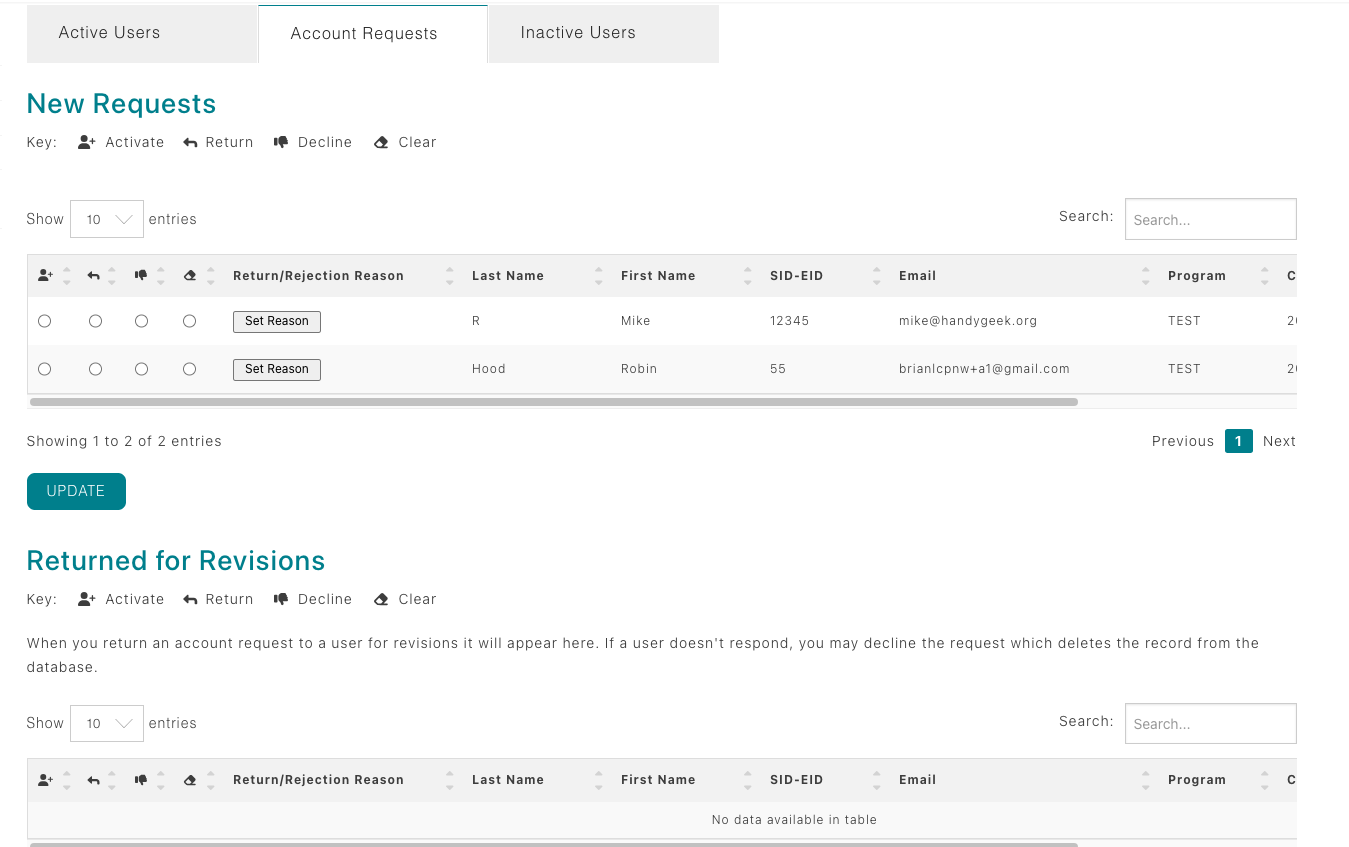
Open the Users tab
- From the Dashboard, expand the Admin menu on the left.
- Select Users to see everyone tied to the programs you administer.
- Select the Account Requests tab to view the pending account requests
Review each request
Review the users name, student or employee id if applicable, email address, and program, to determine if this is a valid account request.
Approve, decline, or request edits
Use the radio buttons in the first three columns to: approve, decline, or return for revisions.
- Approve immediately activates the account and sends the welcome email.
- Decline archives the request and lets you add a note explaining why.
- Needs Edits sends the request back to the applicant with your instructions.
You can always reopen the Account Requests tab later to activate an account that was returned for revisions via the "Returned for Revisions table below the "New Requests" table.
Keep the queue clean
- Approve daily so students can move on to registration and compliance tasks.
- Archive duplicate or withdrawn requests to avoid confusion.
- Document any unusual situations in the notes field for your fellow coordinators.