Educational Coordinator Guide
Background + WATCH Reports
For programs that selected a service package including CPNW WATCH and/or Checkr, use the Background + WATCH Reports table to launch those services and review reviewer decisions to keep placements on track. Programs without those services will instead see Independent Background Check and/or Independent WATCH requirements that coordinators manage themselves.
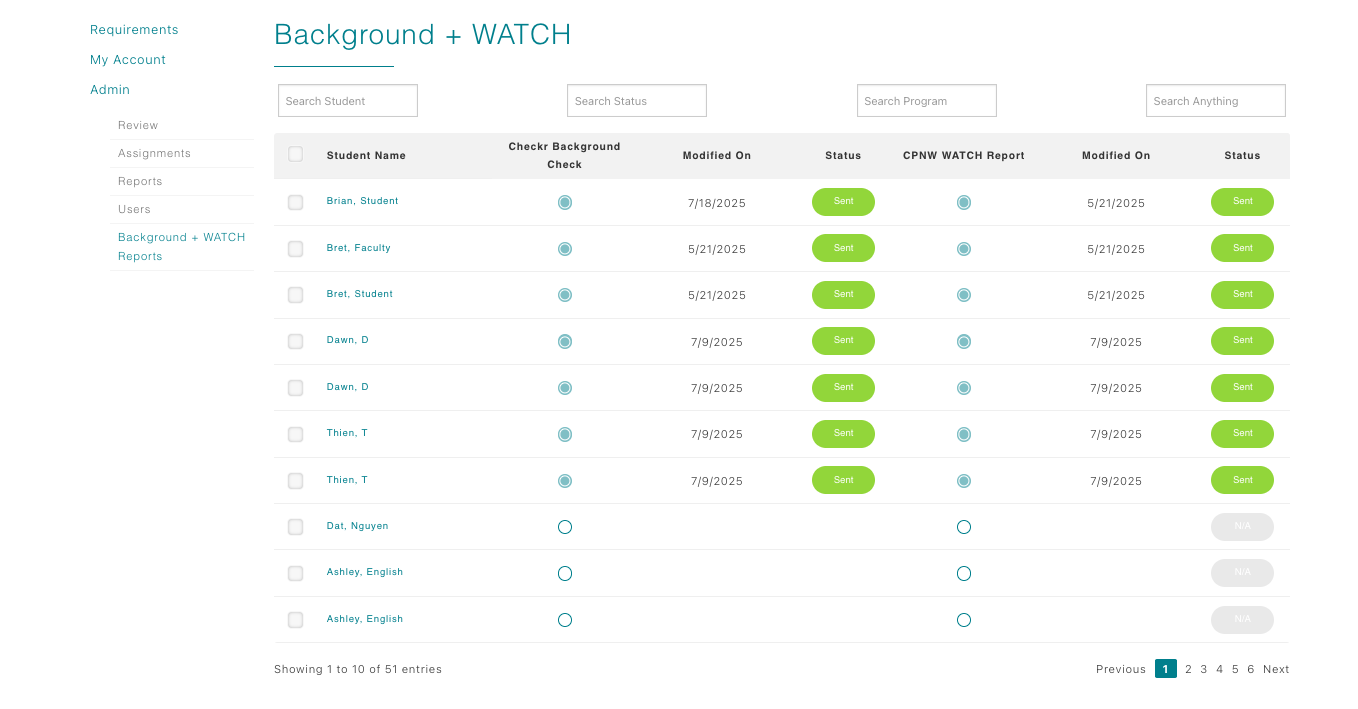
Initiate both services at once
- Select the checkbox next to the student’s name.
- Ensure the radio buttons in both the Checkr and CPNW WATCH Report columns are selected.
- Click Initiate in the final column.
- When the Confirm Service Initiation modal appears, choose Confirm and Initiate Services to proceed (or Cancel to back out).
Initiate a single service
Repeat the steps above but select only the radio button for the service you need. Clicking Initiate fires that request without triggering the other column.
- Checkr: Sends the student’s name and email to Checkr. They deliver an invitation directly to the student. Once complete, the reviewer evaluates and approves/rejects the requirement.
- CPNW WATCH: Routes the request to the CPNW reviewer, who runs the report, uploads the result, and sets the status accordingly.
Handling results and overrides
- For clean Checkr background checks, the reviewer marks the requirement approved. International checks should be coordinated directly with CPNW Tech Support.
- If Checkr flags an issue, the reviewer may reject the requirement. Review the Checkr report, confer with the student, and choose whether to override the rejection or allow it to stand.
- WATCH results follow the same pattern: the reviewer uploads the document and sets the requirement status. Educational Coordinators can override by approving or leave the rejection, which typically blocks the clinical assignment.