Educational Coordinator Guide
Coordinator Dashboard
Get familiar with every section of the landing page so you never miss a student message, compliance alert, or action item.
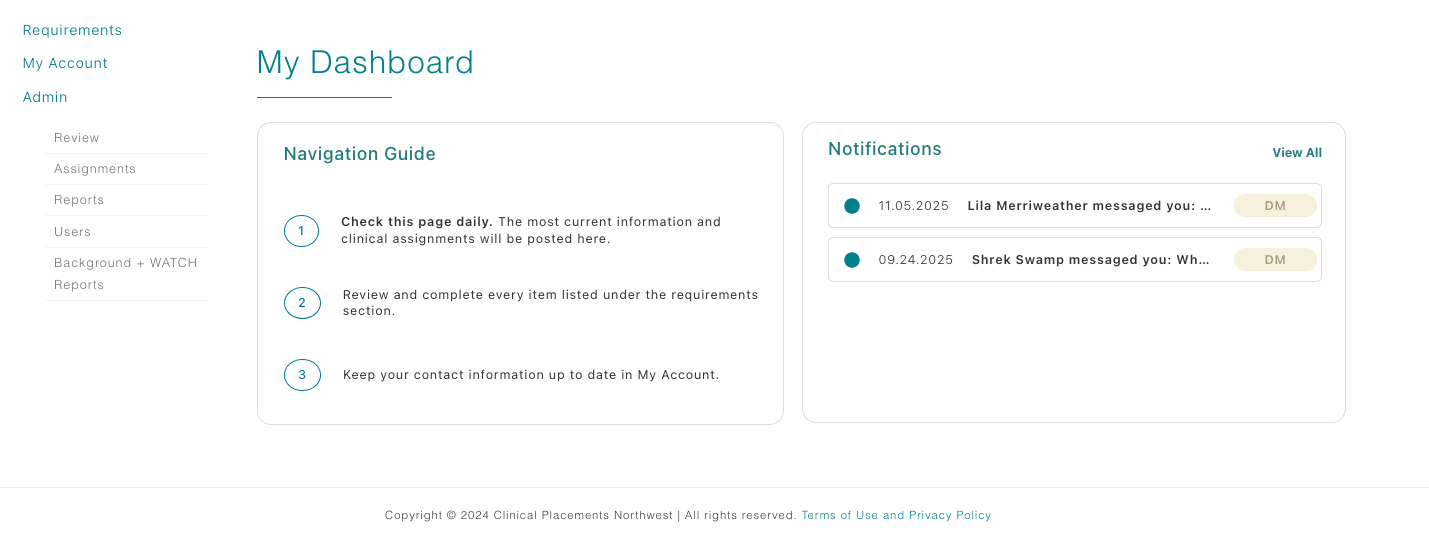
Notifications (right side)
Every time you land on the Dashboard, the right column keeps you current. This widget lists new student messages, reminders about pending approvals, and platform announcements. Click a notification to jump to the relevant area or open the message thread.
Requirements quick link
The first shortcut in the left column opens the Requirements builder. Educational Coordinators do not have compliance items to complete themselves; instead, this area is where you create new or edit existing educational requirements for your programs. Update instructions, attach documents, and publish so students see the latest guidance.
My Account
Expanding My Account reveals three links:
- My Profile – Confirm your contact information and other details.
- My Security Settings – Change your password, two-factor delivery method, or preferred verification channel.
- My Demographics – Where you can upload a profile image.
Admin menu
Open the Admin section on the left to access the tools you use most:
- Review – Approve, reject, or conditionally approve student requirements.
- Assignments – Assign students to clinical facilities.
- Reports – Generate compliance reports, view background/OIG/SAM status, and open each student’s documents folder.
- Users – Manage active accounts, approve new requests, or archive/reactivate accounts.
- Background + WATCH Reports – Launch Checkr Background Check or CPNW WATCH services. (Only available for programs who selected a service package that includes this feature.)
Tips for staying current
- Start each day by scanning Notifications so no student messages or other notifications are missed.
- Use the Admin's Review link to review student requirements as needed.
- Keep the Users tab tidy. Archive graduates quickly and reactivate returning faculty/students as needed.