Educational Coordinator Guide
Review Submissions
Use the Review Submissions table to monitor incoming requirements, open each student record, and record clear decisions.
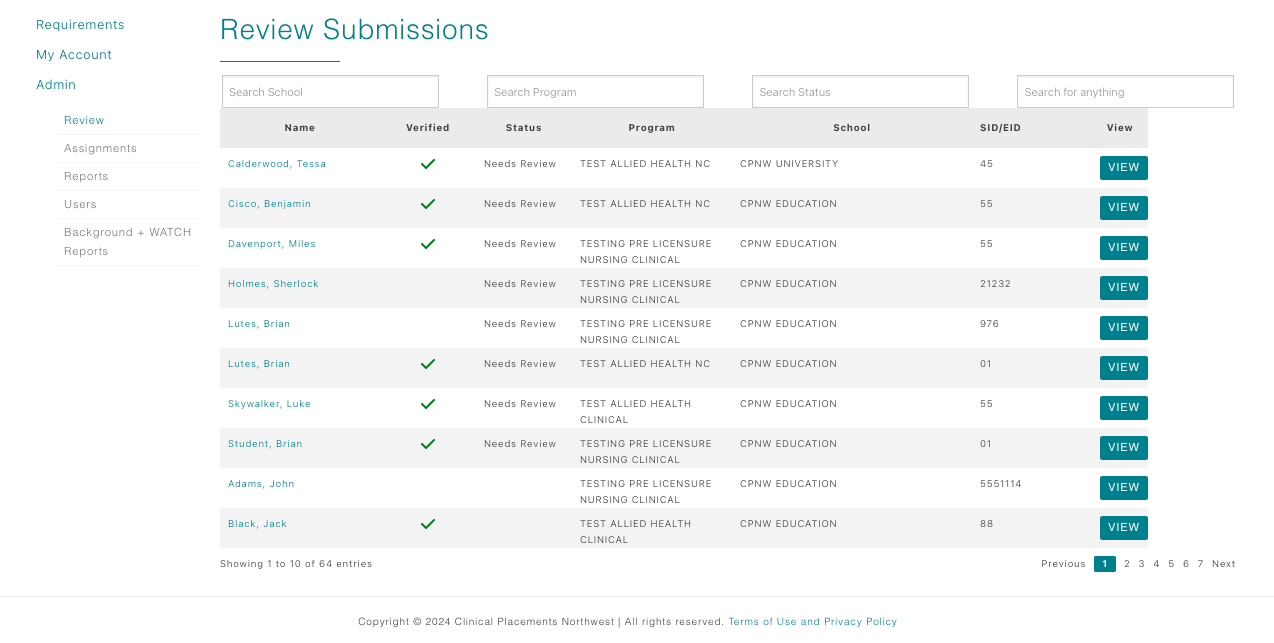
Open the Review page
- From the Dashboard, expand Admin and click Review.
- The Review Submissions table lists each student with columns for Name, Verified, Status, Program, School, SID/EID, and View.
- Students with at least one requirement in Submitted or In Review appear first with a Needs Review status.
Inspect a student’s record
Click the student’s name or the View button to open the detail modal.
- The modal shows school/program info, clinical assignments, and—depending on your service package—up to 21 CPNW requirements (10 modules + 11 immunization/other items).
- eLearning module statuses update automatically—no action required.
- If your program uses CPNW’s Document Verification Specialist (DVS) services, CPNW reviewers handle approvals, though you can still inspect submissions. Programs without DVS must review each requirement themselves.
Review an individual requirement
- Scan the first two columns (Requirement Name + Status) and look for any listed as In Review.
- Click the requirement name to open its detail modal. You’ll see submission data, optional declination reasons, and any uploaded documents. Click the eye icon beside a document link to preview or download exactly what the student submitted.
- Choose Accept, Conditionally Approved (if available), or Reject, then click Save.
- If you select Conditionally Approved or Reject, enter a message explaining the condition or rejection reason. The message appears in the modal’s message pane and is sent to the student.
Communicate and follow up
- Students receive a notification whenever the status changes. Remind them to read your comments and upload any fixes.
- When a student resubmits, the status returns to Submitted and the table again lists them as Needs Review.
- For background-check rejections, coordinators can override by approving if an exception is warranted, or leave the rejection to block the clinical assignment.
Verified column & Verification Complete button
The Verified column in the Review Submissions table mirrors the Verification Complete button found inside each student’s requirement modal. Once every CPNW Clinical Passport requirement—including all eLearning modules (check the Category column by scrolling right)—is approved, click Verification Complete. This signals that the student’s core requirements are ready for the healthcare facility to review.
After the button is pressed, the facility gains visibility into both CPNW and site-specific requirements, and the Review table’s Verified column shows a green checkmark. That checkmark tells you (and your healthcare partners) that the student is ready for the site to examine and clear for placement review.