Healthcare Coordinator Guide
Healthcare Dashboard Overview
See where to manage site notifications, launch quick links, and navigate the three Admin tools specific to healthcare partners.
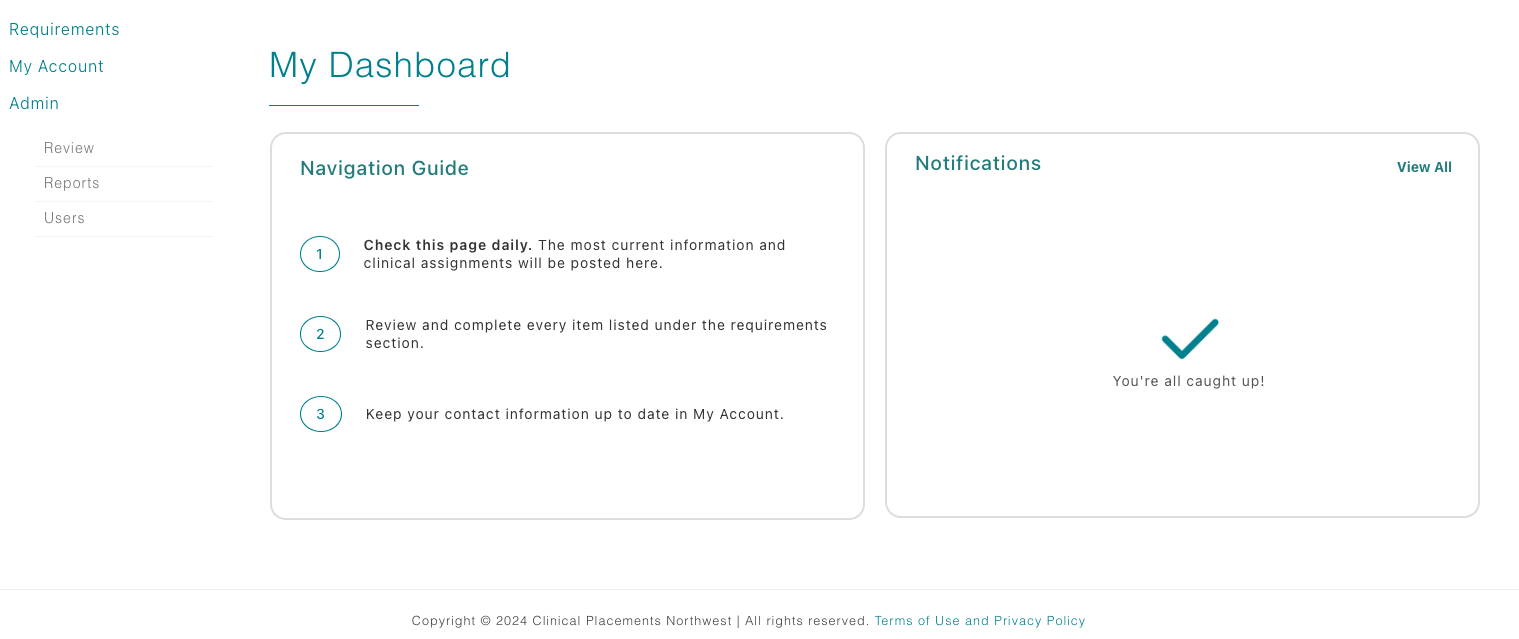
Notifications (right side)
Every time you land on the Dashboard, the right column keeps you current. This section lists new student messages, reminders about pending approvals, and other announcements. Click a notification to open the notification modal.
Requirements quick link
Healthcare partners can create and maintain their own requirements through this link. Most sites stick to the Forms or Site Orientations categories—perfect for sharing site-specific paperwork or orientation steps. Review existing items, update instructions, and publish so education partners and students know exactly what your facility expects.
Admin menu for healthcare partners
Healthcare coordinators have three Admin links:
- Review: Open the Review Submissions table to check both CPNW and site-specific requirements created by your healthcare facility.
- Reports: Review and export reports summarizing compliance items, background checks, and data from other requirements for students/faculty assigned to your facility. This is also where you can access the students documents folder.
- Users: See active healthcare users for your facility, archive or reactivate accounts, and approve or decline access requests for your organization.